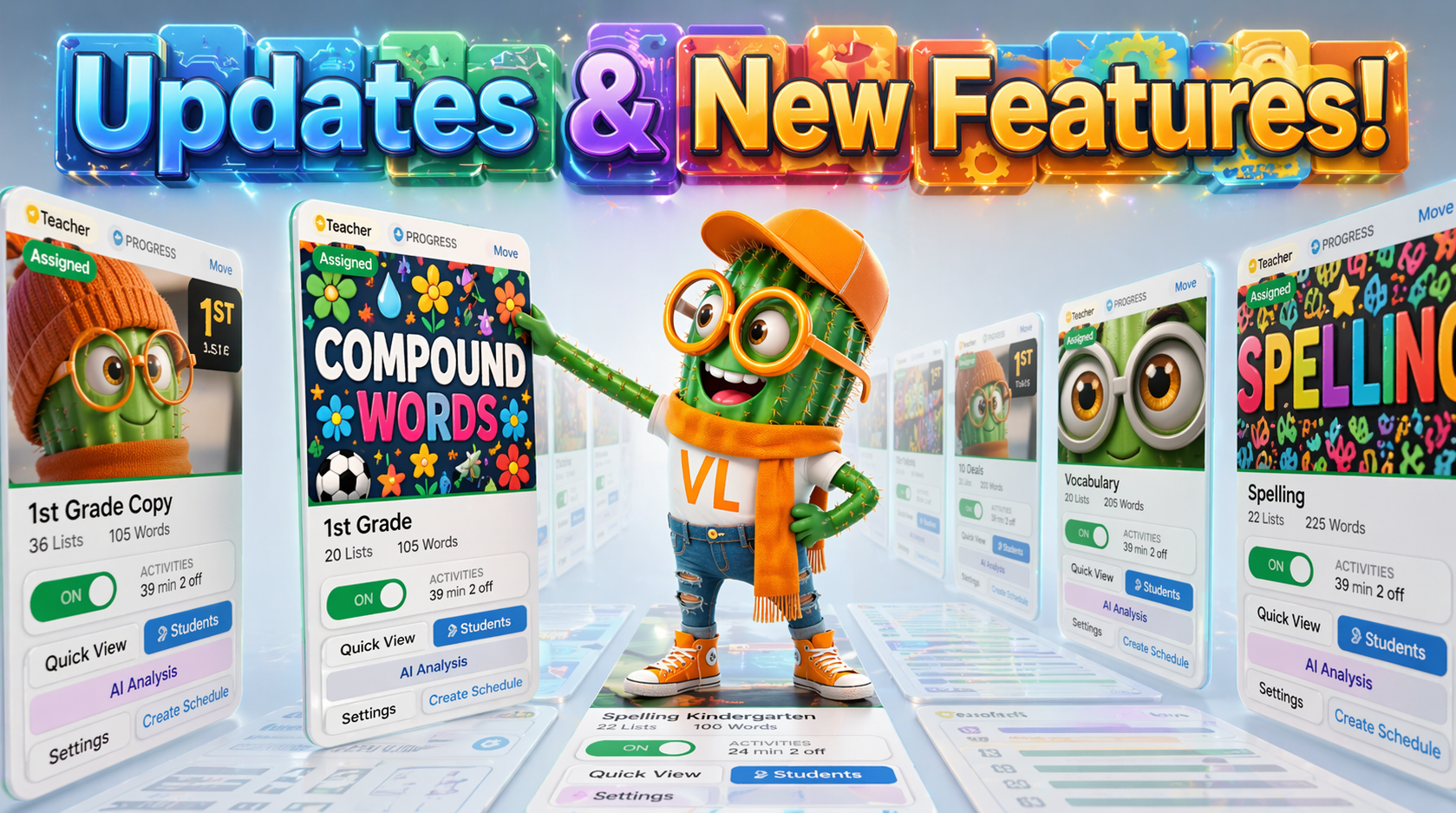
What's New
Vocab Loco just made word list management faster, smarter, and way more flexible. Bulk tools, smarter AI, and better control over activities—all designed to save teachers time.
✨ AI Word List Generation
A new By List Range mode is available inside Generate with AI.
Generate Word Lists by List Range
Define a different focus and word types for each list span to build full vocabulary units where each week has its own theme and structure—all generated in one go.
This feature is available inside the Custom Word List page. Open any group, click Manage Words, and then click the Generate with AI button at the top of the page.
AI credits required.
Build weekly vocabulary units in minutes instead of hours.
🎯 Activities & Scoring
You now have more control over how students are graded—down to capitalization.
Uppercase / Lowercase Accuracy Control
Capitalization can now be configured word by word inside Spelling Test, Writing Sentence, Writing Prompt, and Word of the Day. For each word, choose: uppercase, lowercase, both, or leave it unchanged.
Enable and Disable Activities from the Overview Pop-up
The Activities Overview pop-up now allows toggling individual activities on or off and setting which days of the week each one appears, without leaving the Word Lists page.
These settings are available on the Word Lists page under the Lists Assigned to Students tab. Click the activity counter on any assigned list card to open the Activities Overview pop-up.
📋 Word List Management
Manage large word lists faster than ever with new bulk tools and cleanup features—accessible from the Word Lists menu. Open any group and click Manage Words to get started. The Actions menu is located at the top right of the word list editor.
Add Lists in Bulk via CSV
Multiple word lists can now be imported at once. Paste comma-separated data directly or upload a CSV file. Format: one list per line, starting with the list name followed by each word.
Export Word Lists as CSV
All custom word lists can be downloaded in one click using the Export CSV button at the top of the Custom Word List page.
Copy All Words to Clipboard
The Copy All button inside the Quick View pop-up and the Custom Word List page copies every word from a list group to the clipboard instantly.
Find Duplicate Words Across Lists
Go to Actions → Find duplicate words to see every word that appears in more than one list, with direct links to navigate to each one. Duplicates are also highlighted inside the Quick View pop-up.
Where to Find These Features
Most of these tools live inside the Custom Word List page. Use the Actions menu, Export CSV button, or + Create New List to get started. The Activities overview is accessible from the Word Lists page by clicking the activity counter on any assigned list.
Watch it in action — see all the new features in our quick overview video.
Share this article
Help spread the word about this story